
Simplifying Development with Docker Compose in Bankie.go
Using Docker Compose for provisioning multiple containers for the different resources in a multi-service application.

Bankie.go, a simple banking application built with Go, has been updated to streamline the development and deployment processes using Docker Compose. In this blog post, we will explore the benefits of this update and guide you through the setup and usage of Go applications with Docker Compose.
Why Docker Compose?
Docker Compose is a powerful tool for defining and running multi-container Docker applications. It simplifies the management of containers, their interdependencies, and the overall environment setup. By incorporating Docker Compose into their Go applications, developers can enjoy several advantages:
-
Isolation: Each component of the application (e.g., the Go application, PostgreSQL database) runs in its own container, providing isolation. This separation ensures that dependencies and configurations don't conflict.
-
Portability: Docker Compose allows you to define the entire environment in a single configuration file (docker-compose.yaml). This file specifies how containers should interact and can be versioned with your codebase. This ensures consistent environments across different development and deployment setups.
-
Efficiency: Starting and stopping the application, including dependencies like databases, is simplified with Docker Compose. Developers can focus on writing code without worrying about environment configuration.
-
Easy Collaboration: Sharing the development environment with other team members becomes seamless. Everyone can set up and run the application using the same Docker Compose configuration.
Configuring Services Using Docker Compose
When you have an application that uses at least two or more services, it is technically a right candidate for Compose, especially if they talk with each other. For example, Bankie.go has a Go web server and a Postgres database. Before now, I run the Go web server using thego run cmd/app/main.go
Writing the Dockerfile
Docker Compose runs with the help of a Dockerfile. For my Go application, I have this as it's contents:
# Start from a Golang base image
FROM golang:1.20.4-alpine3.18 AS builder

# Set the working directory inside the container
WORKDIR /app

# Copy the Go modules manifests
COPY go.mod go.sum ./

# Download the Go modules
RUN go mod download

# Copy the source code into the container
COPY . .

# Build Bankie
RUN go build -o /app/bankie ./cmd/app

# Set the entrypoint to run Bankie
CMD ["/app/bankie"]
This is quite performant and well explained just in case you need to understand what is going on.
Writing the Docker Compose file.
The Docker Compose file is usually adocker-compose.yml
- Start with a version. The version I used as of the time of writing is 3.8:
version: "3.8"- Next, define the services. For Bankie.go, I need a postgres database and the Go web server itself.
version: "3.8"

services:
  postgres:

bankie:- Now, I need to specify the images the should pull. I don't need an image for the Go web server though. I only have to build an image out of it. So, the postgres service will receive/pull an image, while the bankie web server will build an image:
version: "3.8"

services:
  postgres:
    image: postgres:latest

  bankie:
    build:
      context: .
      dockerfile: Dockerfile
We're making progress. 4. Next, we need to specify the container names for these images:
version: "3.8"

services:
  postgres:
    image: postgres:latest
    container_name: bankie-postgres

  bankie:
    build:
      context: .
      dockerfile: Dockerfile
container_name: bankie-app- After that, we specify the ports for each containers. Also, we will specify that the bankie service depends on the postgres service, making the postgres service start first:
version: "3.8"

services:
  postgres:
    image: postgres:latest
    container_name: bankie-postgres
    ports:
      - "5432:5432"

  bankie:
    build:
      context: .
      dockerfile: Dockerfile
    container_name: bankie-app
    ports:
      -   "8082:8082"
    depends_on:
- postgres- Now, we need to specify environment variables for both services:
version: "3.8"
services:
postgres:
image: postgres:latest
container_name: bankie-postgres
ports:
- "5432:5432"
environment:
POSTGRES_DB: bankiestoreNote that the passwords will be the same and must match the one used in the application, else, it will raise a FATAL error about authentication failure. 7. Let's proceed to finish up with a network configuration:
version: "3.8"
services:
postgres:
image: postgres:latest
container_name: bankie-postgres
ports:
- "5432:5432"
environment:
POSTGRES_DB: bankiestoredocker-compose up
retry
package main
import (
retry "github.com/avast/retry-go"
"github.com/theghostmac/bankie.go/api/rest"
"github.com/theghostmac/bankie.go/common/logger"
"github.com/theghostmac/bankie.go/database/migrations"
"github.com/theghostmac/bankie.go/database/users"
"log"
"time"This is due to obvious reasons. You might want to do similar in your application if it arises.
Setting Up Bankie.go with Docker Compose
Here's how you can set up and run your Go application using Docker Compose. We will use Bankie.go as the example app:
-
Clone the Repository:
Start by cloning the Bankie.go repository to your local machine using the following command:
git clone https://github.com/theghostmac/bankie.go.git -
Navigate to the Project Directory:
Change your working directory to the project folder:
cd bankie.go -
Run Docker Compose:
With Docker Compose, you can easily start the entire application stack, including the Go application and the PostgreSQL database. Use the following command to start Bankie.go:
Docker Compose reads the configuration defined indocker-compose upand sets up the environment accordingly. You'll see the application and database containers being created and initialized.docker-compose.yml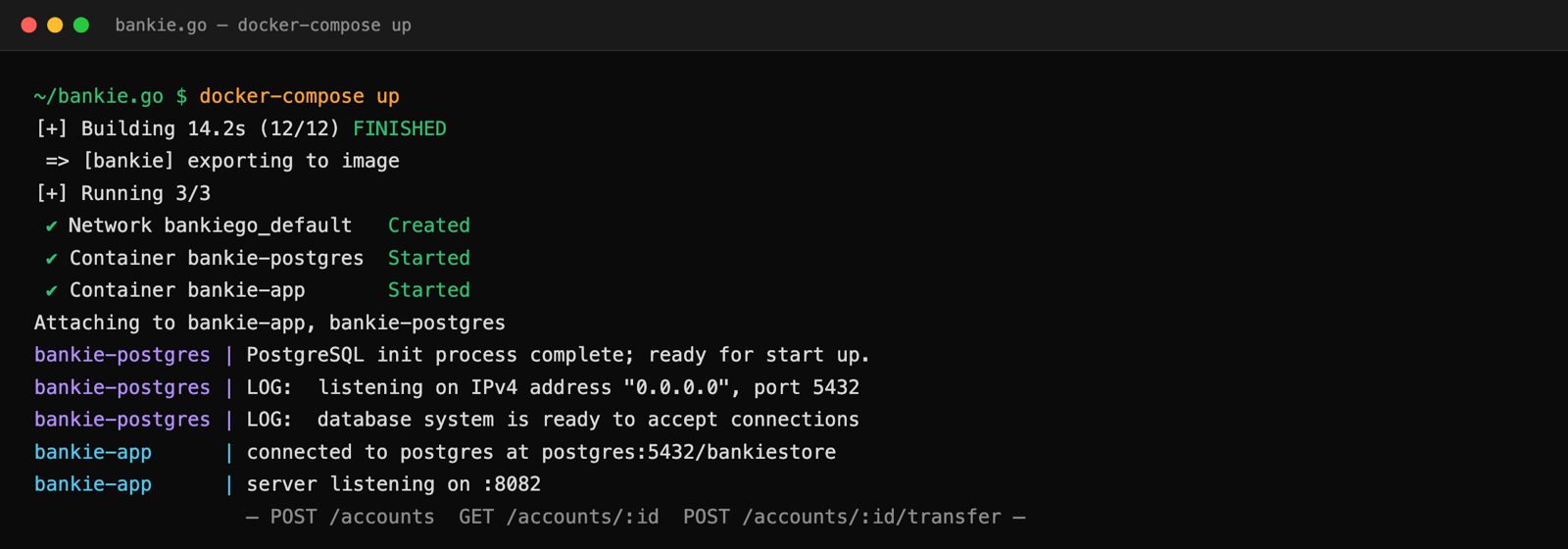
-
Interact with Bankie.go:
Once the application is running, you can interact with Bankie.go using a RESTful API. The available endpoints include:
- : Create a new bank account with the account holder's name and an initial deposit amount.POST /accounts
- : Retrieve information about a specific account.GET /accounts/:id
- : Make a deposit to a specific account.POST /accounts/:id/deposit
- : Make a withdrawal from a specific account.POST /accounts/:id/withdraw
- : Transfer funds from one account to another.POST /accounts/:id/transfer
- : Retrieve the transaction history of a specific account.GET /accounts/:id/transactions
with the actual account ID in the endpoint URLs.:id
Example Usage
Here's an example of usingcurl
-
Create a New Account:
Run the followingcommand to create a new account:curlcurl -X POST -H "Content-Type: application/json" -d '{ "FirstName": "John", "LastName": "Doe", "Email": "johndoe@example.com" }' http://localhost:8082/accountsYou'll receive a JSON response with the account details.
-
Retrieve Account Information:
To retrieve information about the newly created account, use the followingcommand:curlcurl http://localhost:8082/accounts/1This command will return a JSON response with the account details.
Conclusion
Docker Compose simplifies the development and deployment of multi-container applications like Bankie.go. With a single command, you can set up the entire application stack, allowing you to focus on coding and not on environment configuration. It also promotes consistency and collaboration among development teams.
By updating Bankie.go to use Docker Compose, we've made it even more developer-friendly, enabling you to build, run, and test the application effortlessly. Give it a try, and enjoy a smoother development experience with your Go applications!